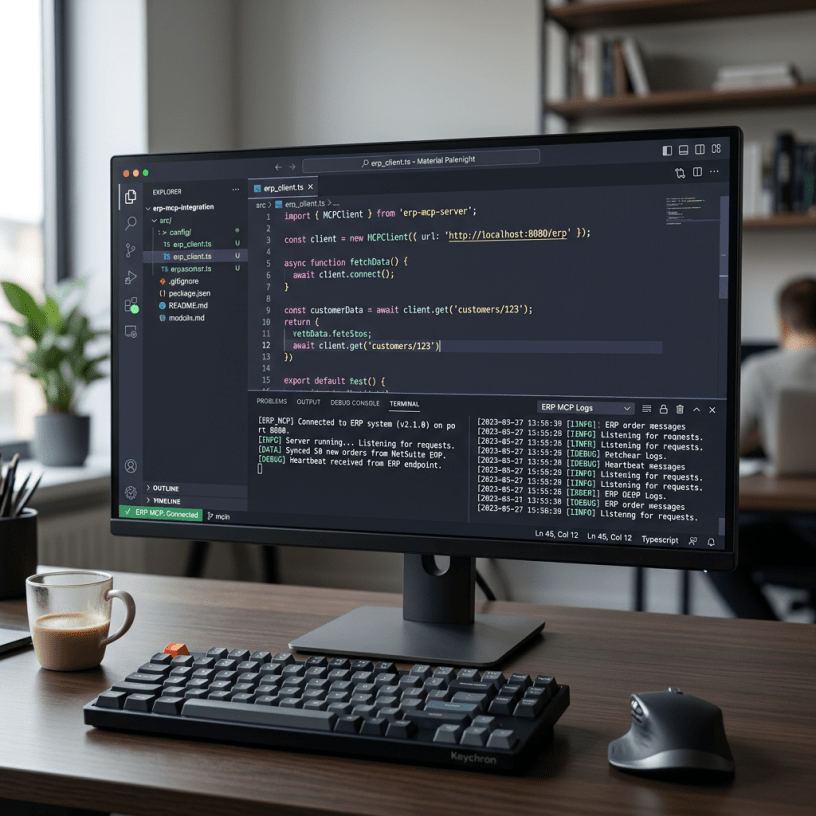
If you are beginner and want to start from basics of using Dynamics F&O MCP server in VS code and in Azure foundry this blog post will walk you though those steps.
Prerequisites
- VS code is installed on you local laptop or server where you can access it.
First step is to make sure you have Model context Protocol server feature enabled in Dynamics 365 For finance and operations. The Dynamics 365 ERP Model Context Protocol (MCP) server provides the connection of AI agents to Dynamics 365 finance and operations apps using the standard protocol.

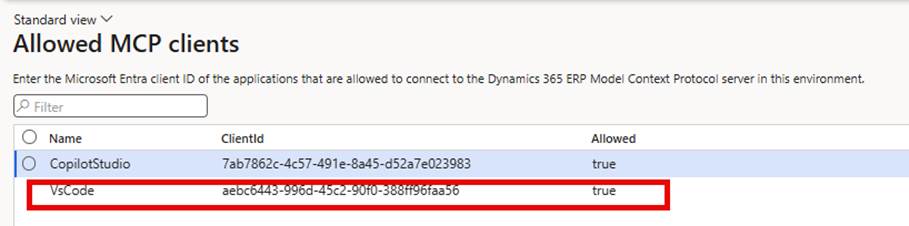
After enabling feature navigate to System Administration > Set up > Allowed MCP clients and change value from false to true for VS code. Later we will see significance on this form.
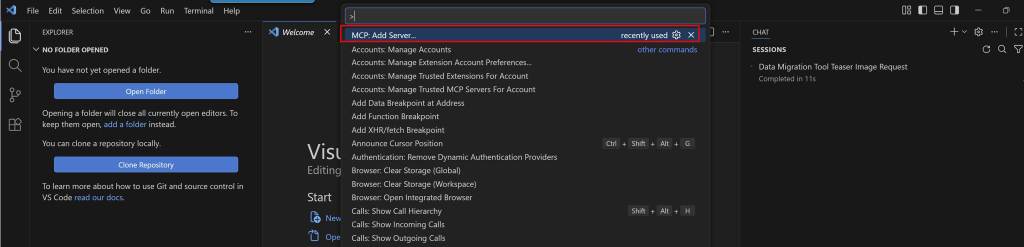
Now the next step is to open VS code and press Ctrl + P and click on MCP: Add server option.
Select HTTP or Server -sent event option in the dropdown

Add your Dynamics 365 F&O url in the box and hit enter. You can give your own name to MCP server or you can keep default name.
Sample URL – https://abc.operations.dynamics.com/MCP

Once you add it VS code will genenrate a JSON like below and ask you to autheticate agaist F&O enviornment. Even if you allow and sucessfully able to authenticate you might receive below error.
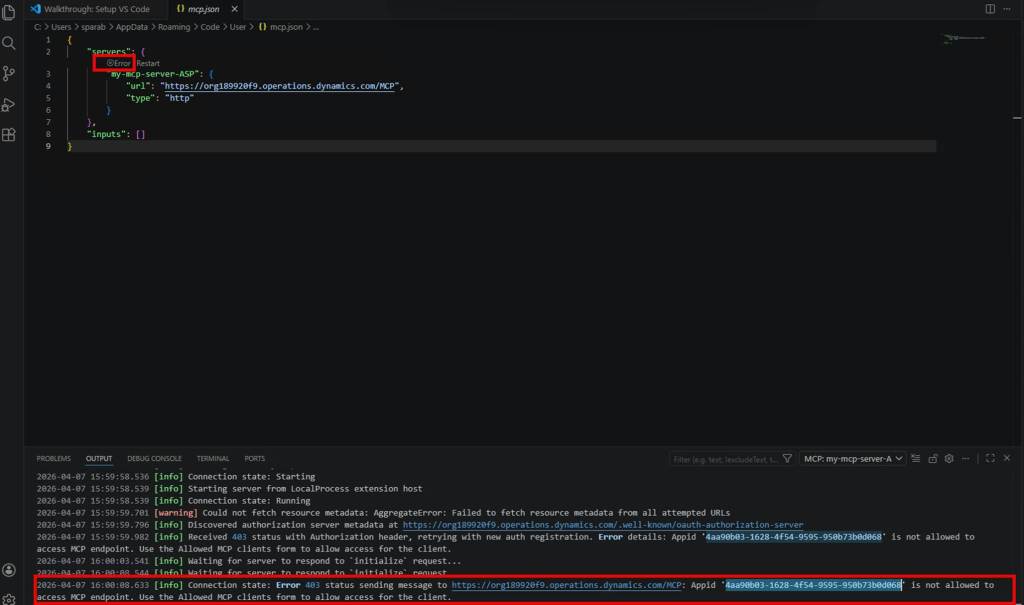
To get over this error you need to add app ID (4aa90b03-1628-4f54-9595-950b73b0d068 ) In FO. You can Navigate to System administrator > Set up > Allowed MCP client form and Add this Id.
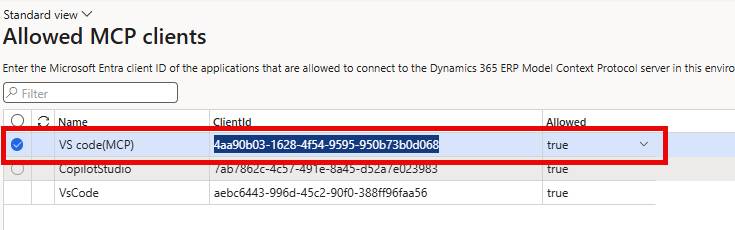
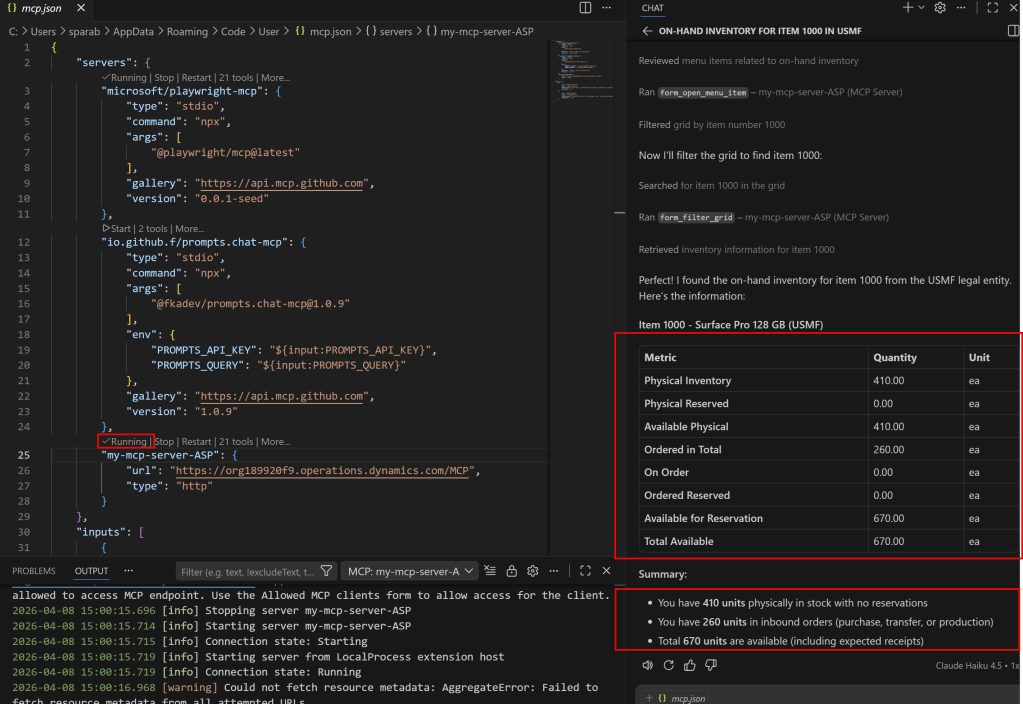
After this you can restart your MCP server. Now you can see my MCP server is up and running, I can start providing prompts to get results from F&O.
As you can see I asked in the chat window for on hand inventory for item 1000 from F&O and I got the details for fields like Available physical , physical reserved, ordered etc. from F&O which matches with what’s present in F&O.