Introduction
If you work in procurement or purchasing, you know how much time goes into chasing suppliers. Sending follow-up emails, waiting for order confirmations, updating purchase orders based on supplier replies — it all adds up fast.
Microsoft estimates that purchasing teams spend up to 50% of their workday on supplier communications alone. That’s half the day on tasks that are often repetitive and low-complexity, leaving less time for the strategic work that actually moves the needle.
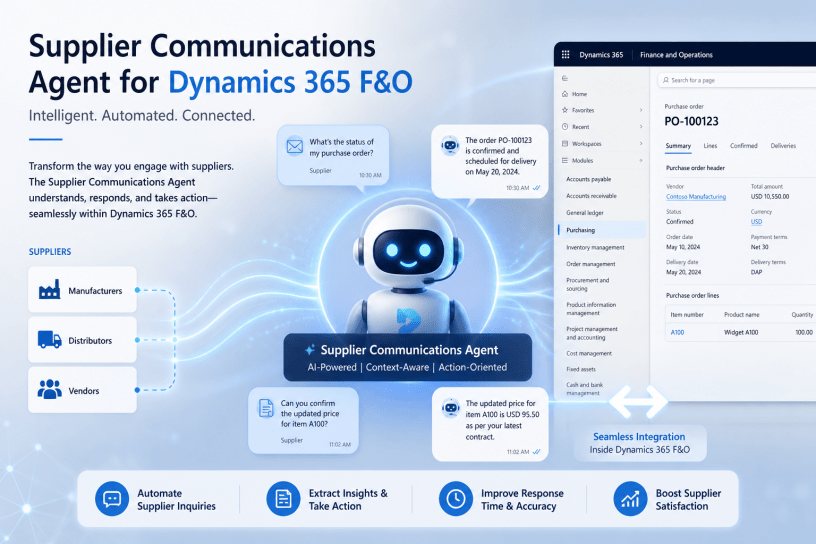
Enter the Supplier Communications Agent — a built-in AI feature in Microsoft Dynamics 365 Supply Chain Management (SCM). Powered by Microsoft Copilot, this agent automates two of the most time-consuming parts of procurement: sending follow-up emails to vendors and reading incoming supplier emails to extract and apply order changes.
This blog post walks you through everything you need to know to get started — from what it does to how to set it up and troubleshoot common issues.
What Is the Supplier Communications Agent?
The Supplier Communications Agent is an AI-powered tool built into Dynamics 365 Supply Chain Management. It works like a smart assistant for your procurement team — one that reads emails, drafts replies, and suggests updates to purchase orders, all without you having to manually dig through your inbox and ERP system.
It handles two main jobs:
- Outbound: Automatically drafts (or sends) follow-up emails to vendors when purchase orders are unconfirmed or deliveries are late.
- Inbound: Reads emails from vendors, figures out what they’re saying (e.g., a change in delivery date or quantity), and maps that information directly to the relevant purchase order in the system.
Think of it as your procurement team’s personal AI assistant — one that never forgets to follow up and never gets tired of repetitive tasks.
Key Features and Capabilities
1. Automated Follow-Up Emails
The agent can automatically identify purchase orders that need attention — such as ones that haven’t been confirmed or deliveries that are running late. For each of those orders, it drafts a professional follow-up email addressed to the right vendor. You can choose to:
- Review the draft before it’s sent (recommended, especially when starting out)
- Auto-send the emails without manual review (great for high-volume, routine follow-ups)
2. Smart Email Reading and Order Updates
When a vendor replies to your team, the agent reads the email and figures out what it means. It can detect things like:
- A change in delivery date
- A request to increase or decrease the ordered quantity
- A purchase order confirmation
Instead of you having to open the email, find the right PO in the system, and manually update each field, the agent does the heavy lifting. It presents a summary of the changes and lets you apply them to the purchase order with just a few clicks.
3. Configurable Tasks and Queries
Every purchaser can create their own follow-up tasks. Want to follow up on orders that are unconfirmed for more than 3 days? Easy. Want a separate task for late deliveries? Done. You can define the criteria, tone, content, and even the email signature.
4. Learns Over Time
You can teach the agent to get smarter. For example, if a supplier always responds with delivery dates in “Week 28” format instead of an actual date, you can train the agent to interpret and convert that automatically going forward.
5. Draft or Auto-Send Mode
The agent gives you flexibility. Start in draft mode to review every email before it goes out, then switch to auto-send once you’re comfortable.
Prerequisites
Before you can use the Supplier Communications Agent, make sure the following are in place:
- Dynamics 365 Supply Chain Management version 10.0.44 or later (with all quality updates applied)
- Copilot in Microsoft Dynamics 365 Supply Chain Management version 1.1.03071.1 or later installed
- The following features enabled in Feature Management:
- (Production Ready Preview) Immersive Home
- (Production Ready Preview) Agent Management
- (Production Ready Preview) Supplier Communications Agent
- A Power Platform / Dataverse environment connected to your Supply Chain Management instance
- A Microsoft Copilot Studio environment (agents are published there automatically in most cases)
- A valid license for premium connectors — for example, Power Apps Premium, Power Automate Premium, or Dynamics 365 Supply Chain Management
- Microsoft Graph configured for sending emails via the batch email provider
Note: This is a production-ready preview feature, which means it’s stable but still subject to updates and supplemental terms.
Common Use Cases
Use Case 1: Chasing Unconfirmed Purchase Orders
Your team sends out 200 POs a week. Manually checking which ones haven’t been confirmed and writing individual follow-up emails is exhausting. With the agent, you set up a task to identify all unconfirmed POs older than 2 days, and the agent drafts follow-up emails for each one — ready to review or auto-send.
Use Case 2: Handling Late Deliveries
A shipment was supposed to arrive yesterday and hasn’t. The agent flags it, drafts a polite but firm email asking for an update, and either sends it automatically or puts it in your draft queue.
Use Case 3: Processing Vendor Email Updates
A supplier emails you to say they can only deliver 80 units instead of 100, and the new delivery date is two weeks later. Instead of reading through the email and manually updating the PO, the agent reads it, extracts the changes, and shows you a clear summary. You click Apply, and the purchase order is updated.
Use Case 4: Multi-Vendor Rollout
Start by enabling the agent for just two or three reliable suppliers. Once you’re confident in the results, expand it to your full supplier base.
Troubleshooting
The Copilot Studio Agents Aren’t Published
This is usually caused by Data Loss Prevention (DLP) policies on your Power Platform environment. Check in Copilot Studio that both agents are present and published:
- Supplier Communications Agent – inbound
- Supplier Communications Agent – outbound
If they’re not published, refer to Microsoft’s guidance on Troubleshoot data policy enforcement for Copilot Studio.
Emails Aren’t Being Sent
- Confirm that Microsoft Graph is configured correctly under Email Parameters.
- Make sure the auto-send feature is enabled if you expect emails to go out automatically.
- Check that the batch email provider is set to Graph, not SMTP.
- For sandbox environments, auto-send is intentionally off by default — keep it that way.
The Agent Isn’t Reading Vendor Emails
- Confirm that the mailbox has been properly synchronized with Dataverse at the server level.
- Check that the vendor’s email address is included in the list of monitored suppliers.
- Make sure the Dataverse and Copilot Studio connections in Power Apps are active and using the correct agent identity.
Flows Show as “Not Activated”
Go back to the Setup Supplier Communications Agent app in Power Apps and verify that all connections are correctly assigned. Re-apply settings and wait for the flows to activate.
Incorrect Data Extracted from Vendor Emails Use the agent’s learning/training feature to improve data mapping. For example, if a vendor uses non-standard date formats or product codes, you can teach the agent how to interpret them correctly over time.
Conclusion
The Supplier Communications Agent in Dynamics 365 Supply Chain Management is a practical, powerful tool for any procurement team looking to save time and reduce manual effort. It doesn’t replace your purchasing team — it frees them up to focus on what they do best: building supplier relationships, negotiating better deals, and making strategic decisions.
Whether you’re a small team managing a few hundred POs a month or a large enterprise handling thousands, this agent can make a real difference in your day-to-day operations.

