
Data Migration is an important part of implementation. Importing data at the correct place is very important.
In D365 F&O information there can be multiple areas in which information can be stored. Where the information lives in D365 can determine different uses of functionality and how your users can utilize their information to improve their efficiency.
In this blog we will see how and where we can migrate customer contacts.
You can migrate customer contacts at two different places in F&O. First is on the customer records itself. Benefit of these contacts are visible from the customer records. Also, you can send documents from F&O to these customer contacts.

There is another way to import contacts, that is through Customer >contacts > Add contacts button on action pane

These contacts are created in the global address book, and these are contact persons for customer record. You can add address, phone, email etc. on these contact records.
Now let’s see how you can import these contacts.
To import contacts in customer record use Party contacts V3. The template looks like below.
When you fill data in this template make sure PartyNumber column Is filled with party of customer record for which you are trying to import data for. Also, set ELECTRONICADDRESSID field to Auto.

To Import data in customer contacts when you click Add contacts button you can use Contacts V2 entity.
Here is the templateLet’s see where the critical fields are required in this template.
AssociatedPartyNumber – This field is required and should be filled with PartyNumber of customer record where you want to associate these contacts.
ContactPersonPartyNumber – This field is also required and should be set to Auto generate.
ContactPersonId – This field is required and set it to Auto generate.

If you want to go further and want to import phone , email , etc on these imported customer contacts (Imported using Contacts V2) , then use them entity which I mentioned above Party contacts V3 and provide party number of contact person.
Sharing customer contacts in Dynamics 365 F&O.
As part of data migration sometimes we get a request to share contacts. A cross-company data sharing feature is very handy in this situation. If you want to learn more about this feature visit this link – https://learn.microsoft.com/en-us/dynamics365/fin-ops-core/dev-itpro/sysadmin/cross-company-data-sharing
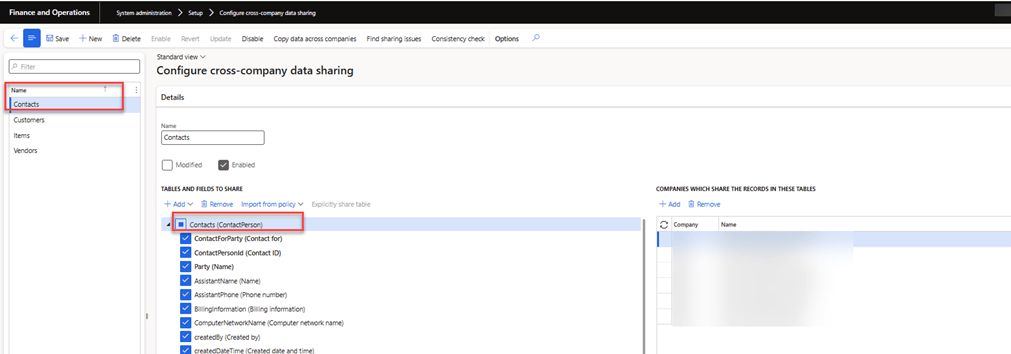
If you have cross company data sharing feature enabled in your enviornment, make sure you add contact person table in the cross company sharing form before you start importing data to share contacts in all legal entities. Entities which you want to share data with can be selected on right hand side section of the cross company data sharing form as shown below.
Hope you enjoyed this post. Please comment for any questions you may have.
 e-Learn Dynamics 365 and Power platform