
In my previous post we saw how to use runnable class utility to run custom x++ script. In today’s post we will see how to use Table browser utility using runnable class utility.
I posted a code for this utility on my github
Table browser is an important tool within Finance and operations. It’s a very useful thing to view data within F&O tables in different environments. In tier 1 environments you can use table browser from visual studio to view the data or you can use web browser to view the data. However, there is restriction on tier 2 environments where you can view data. With this utility you can edit the data in tier 2 environments as well in case urgent fixes are required. However, this functionality can be used only when needed and properly secure by creating a security privilege so that only admin can access it.
Lets take a look how you can use this utility. Perquisite to use this utility is to install runnable class utility. You can find instructions on how to install it here.
Download both utilities from github and import projects in your visual studio enviornment. Open System Administrator >Set up > ASP runnable objects
Form should look like below. Type description as D365 FO table browser, Object type as form and Name as “ASPTables”.
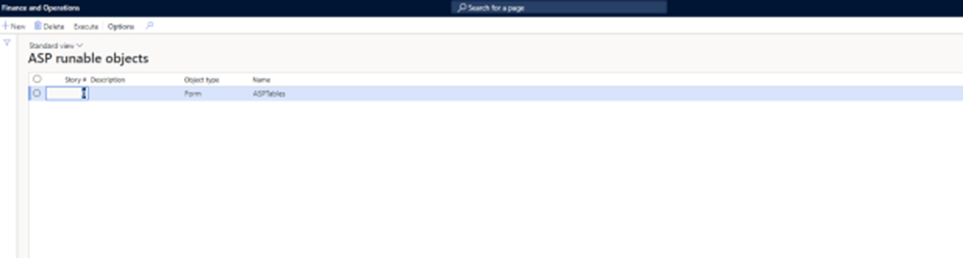
ASPTables is a form built using dialog class to display table name dropdown and table grid is populated at runtime using initialize method. To add further technical details , based on table name selected in the dialog box , using dictionary classes field controls in the grid are added at runtime.
Click on execute button to open dialog box.

You should be table to see form shown below, where you can select name of the table you want to see in the grid.
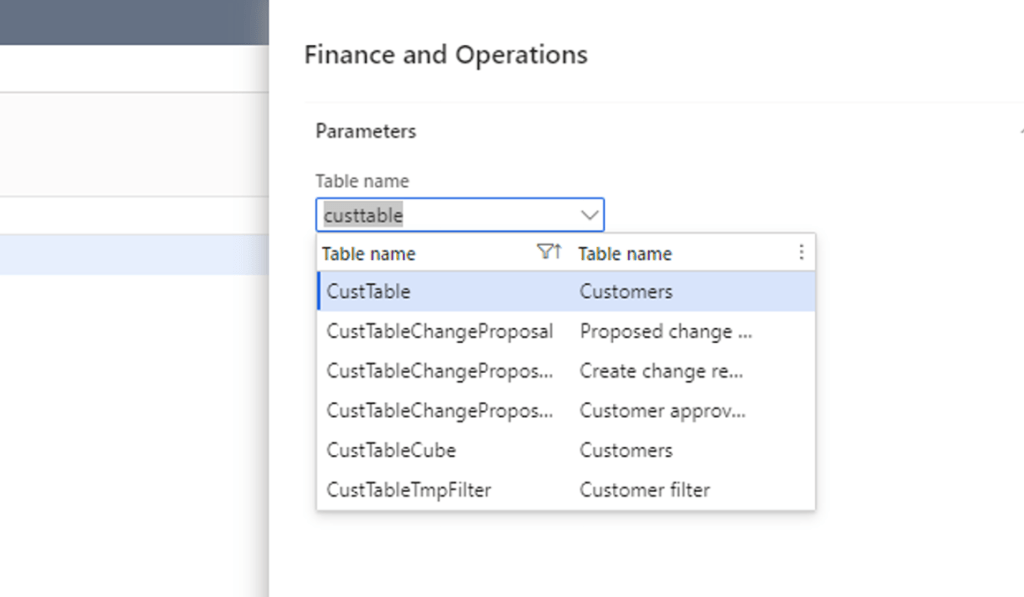
Finally, once you click ok on the dialog box you can see table browser as shown below.

 e-Learn Dynamics 365 and Power platform