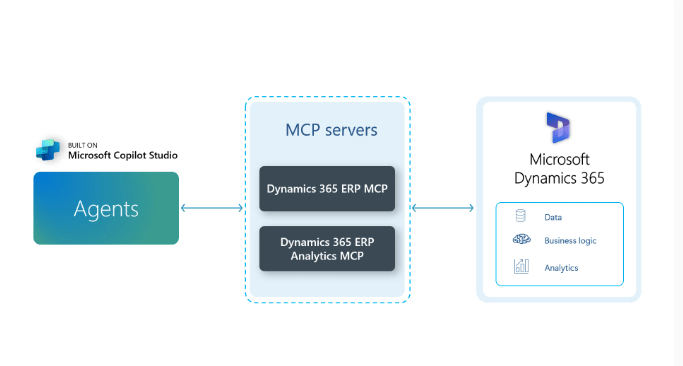
In my last article we have seen briefly about Model context protocol concepts and how it can be used with Dynamics 365 for finance and operations. If you haven’t got a chance to look at it, you can find it below.
Understanding MCP server and Using MCP server with dynamics 365 for finance and Operations
Model Context Protocol
Model Context Protocol”, is nothing but set of rules or protocols that define how to feed context into a model. Model context Protocol standardize way for AI agents to connect with external tools and data sources.
In the earlier version of MCP server for F&O only 13 static tool sets were available where you can get on hand, create transfer order, match vendor invoice and some other supply chain related features. The list is shown in my previous blog post above. With this kind of approach, we would need enormous number of tools to support most of the features Dynamics 365 F&O has.
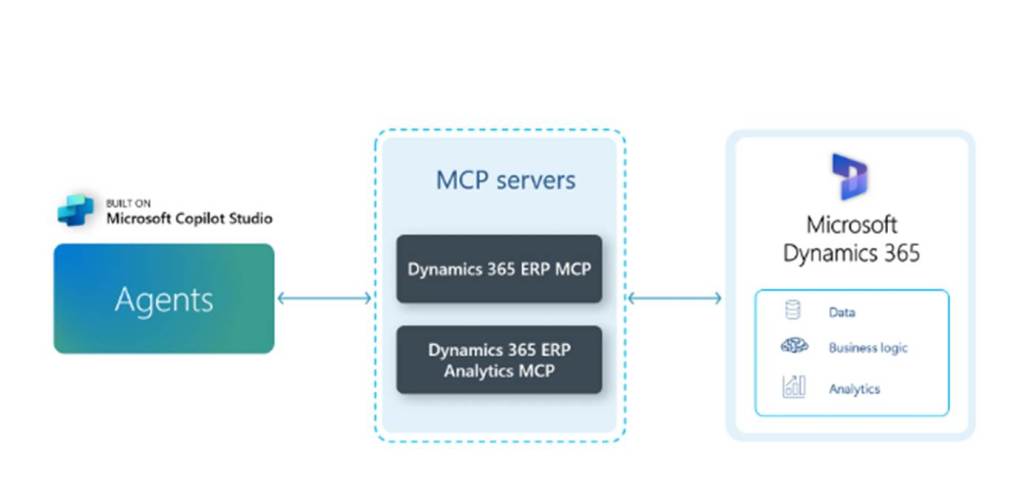
Well, Microsoft has made a announcement recently where they announced two major advancements.
- The Dynamics 365 ERP MCP server is evolving from static to dynamic. This unlocks hundreds of thousands of ERP functions for secure, real-time use by agents, developers, and applications.
- A new Dynamics 365 ERP MCP server for analytics is being introduced. It applies the same model-context principles to business intelligence and insights, with public preview of the server coming this December.
How to enable new MCP server (Preview)?
Prerequisites –
- Your D365 Finance and operations environment must be 10.0.46 or later for it to work. You can deploy a sandbox from PPAC or deploy UDE using PowerShell. If you have existing UDE on lower version you can update it to 10.0.46 preview version from PPAC.
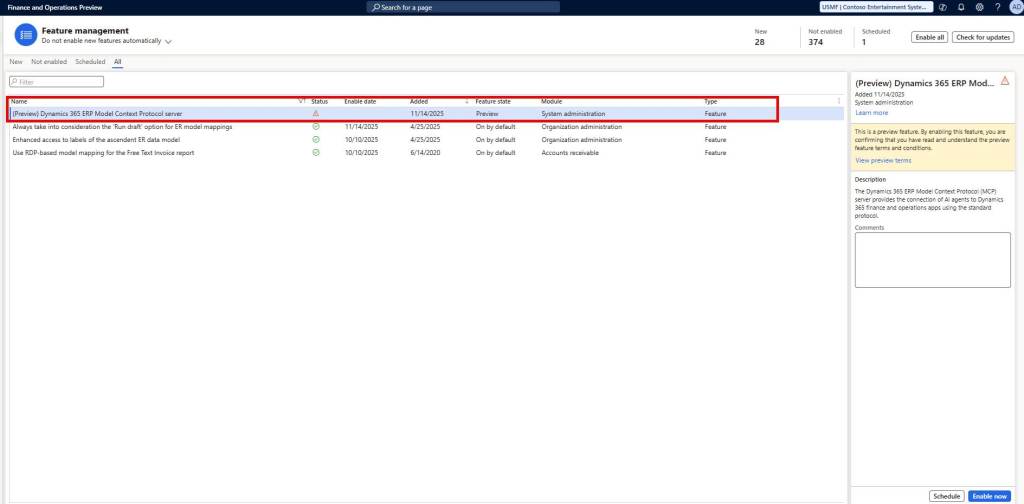
- Enable (Preview) Dynamics 365 ERP Model context Protocol server feature in your F&O environment.
Creation of New agent to configure new MCP server
Visit copilot studio and create a new agent. I created following agent to use new MCP server which is going to interact with Finance and operations.
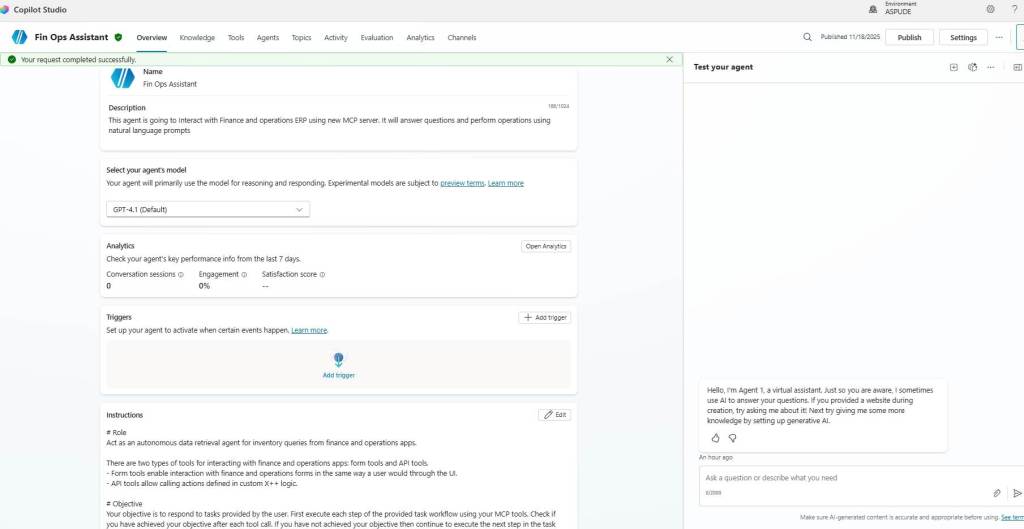
As you can see in the above image I am using GPT 4.1 Model in my agent and Claude models from Anthropic are disabled.
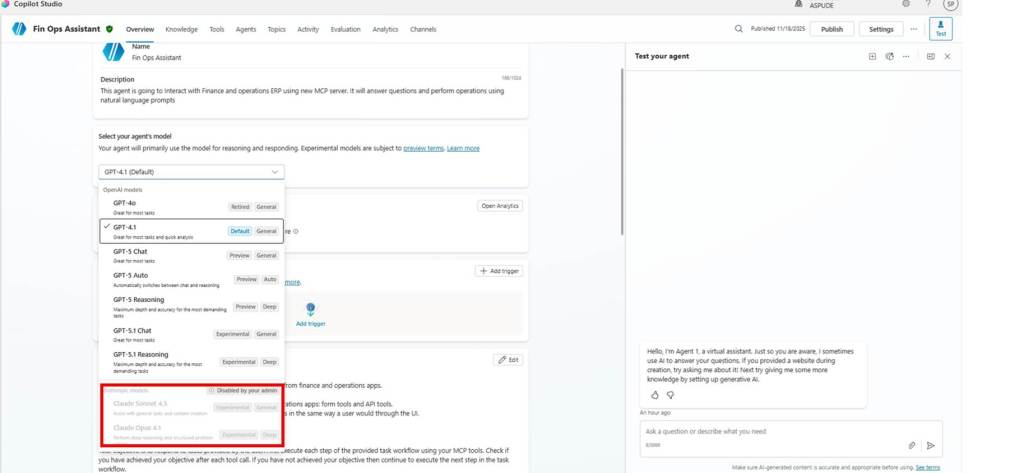
The recommended model for agents using the Dynamics 365 ERP MCP server is Claude Sonnet 4.5. This model provides a better success rate in Copilot Studio over other default models like GPT-4.1. If Claude Sonnet 4.5 isn’t available in your environment, you can use GPT-5 (Chat).
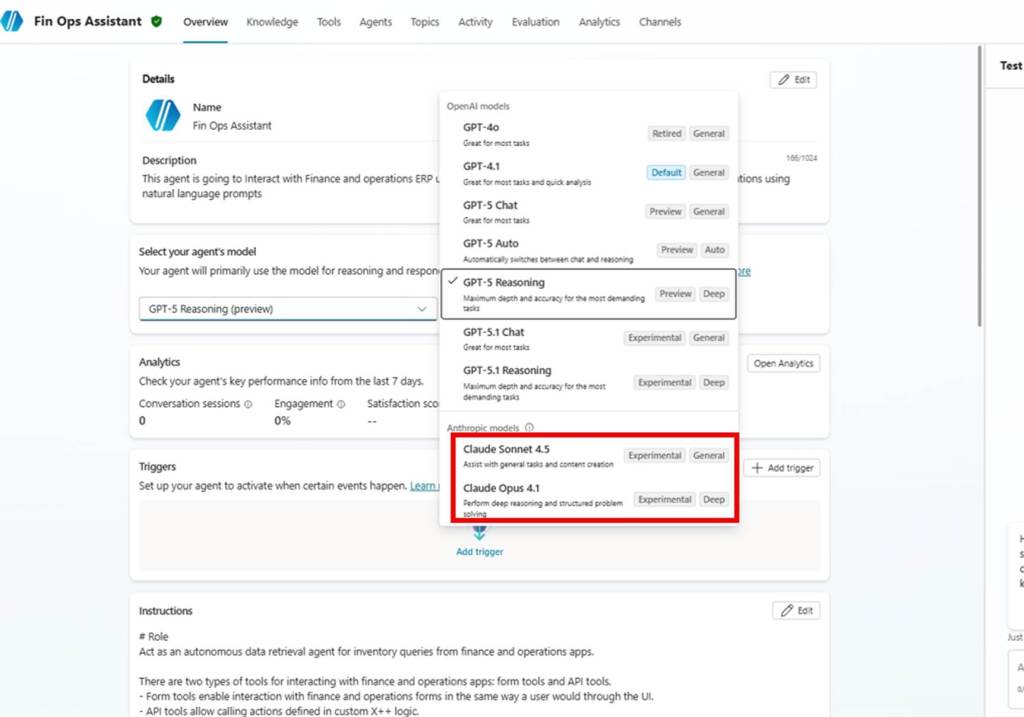
To enable these models from Claude you need to visit M365 admin portal. Go to Copilot settings and enable AI providers for other Large language model options as shown below. Once you do that within few hours selecting these models in your agent is possible. Visit this Connect to Anthropic’s AI models to read more.

As you see below, after enabling Claude models are available in my agent to select.
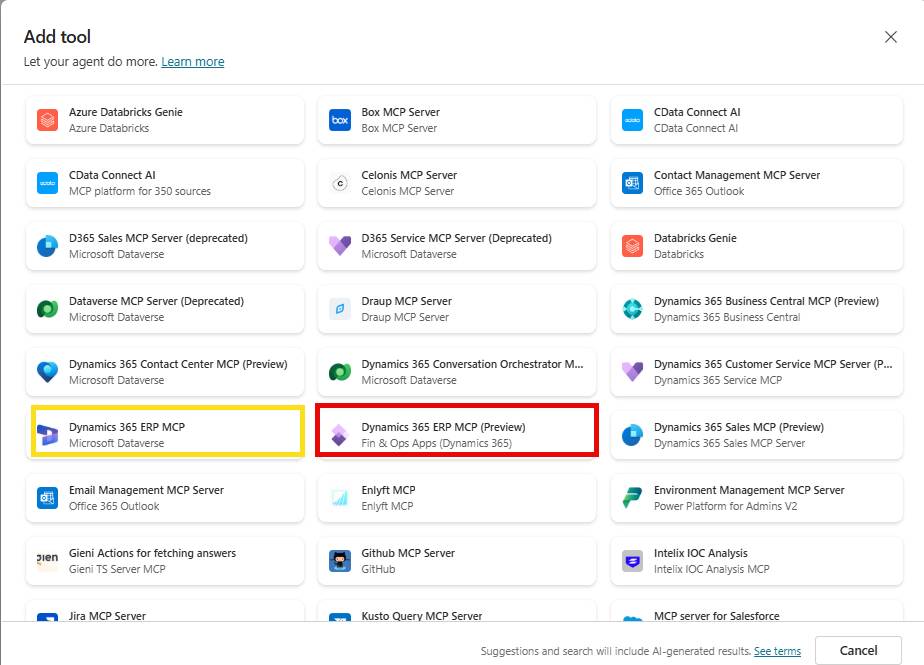
Once Agent is ready you can add MCP server to the tools section. As you can see in the below image MCP servers are available for you. One with yellow borders was released in May with static tools. You can use it however it’s going be deprecated in 2026. The one with red borders is what we are going to use today.
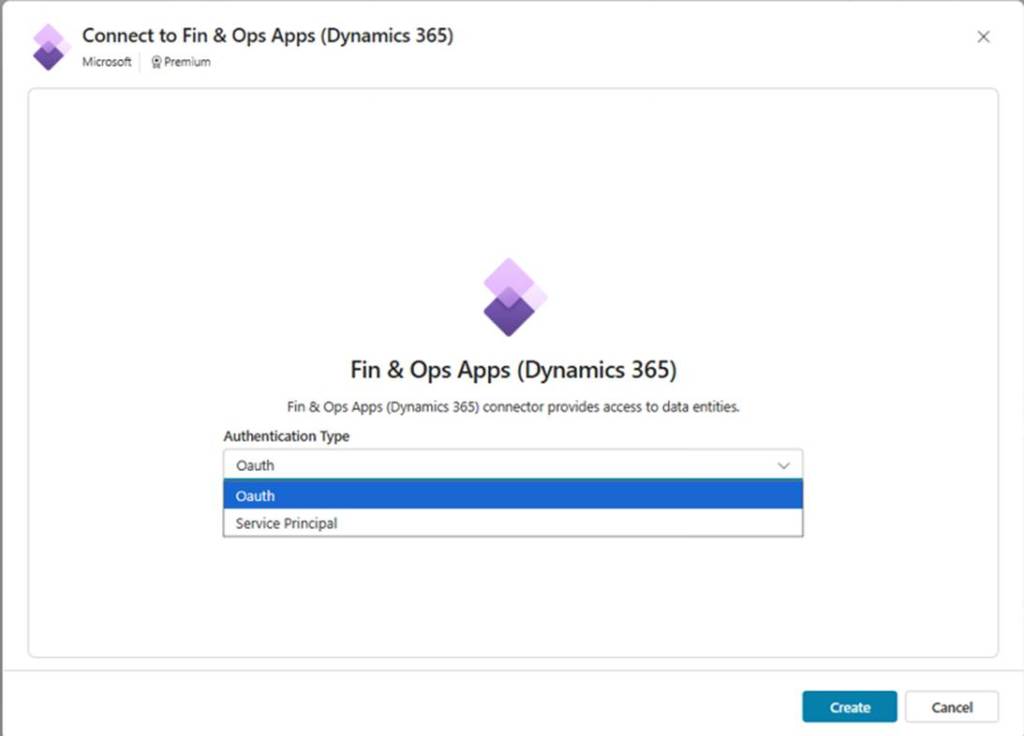
Create a connection to add it in tools section. You can use OAuth or service principle to create connection. To add connection using service principle you need to register an app in Azure Entra ID and grant access. I am using OAuth as authentication type to create connection.
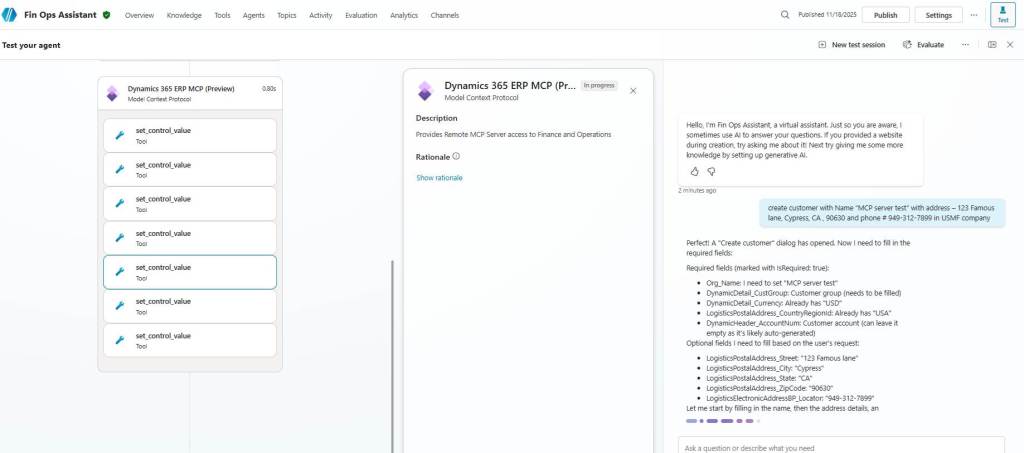
Once connection is established you can see the available tools with in this MCP server. As you can see below, these are not static tools but tools to invoke actions , Filter forms , click controls etc. When you query something behind the scenes it enables the agent to navigate server forms to complete tasks based on your prompt. The agent works with the application data and business logic through server APIs the same way a human would perform the task in the application client.
This unlocks the powerful features within finance and operations available through MCP. Agent works behind the scenes same way humans would perform these tasks.

You can now test your agent by asking different queries. I provided an agent prompt to create customer with Name “MCP server test” with address – 123 Famous lane, Cypress, CA , 90630 and phone # 949-312-7899 in USMF company and created it without any issues. I did not provide customer group, but it picked 10 as default customer group.
However, this operation took several minutes to complete. The response is definitely on the slower side, but that could be because it’s still in preview. When I provided prompt with GPT 4.1 vs Claude 4.5 Models I can see difference in timing the way model behaves. With Claude model customer creation took approximately 1 minute vs with GPT 4.1 it took close to 5 minutes.
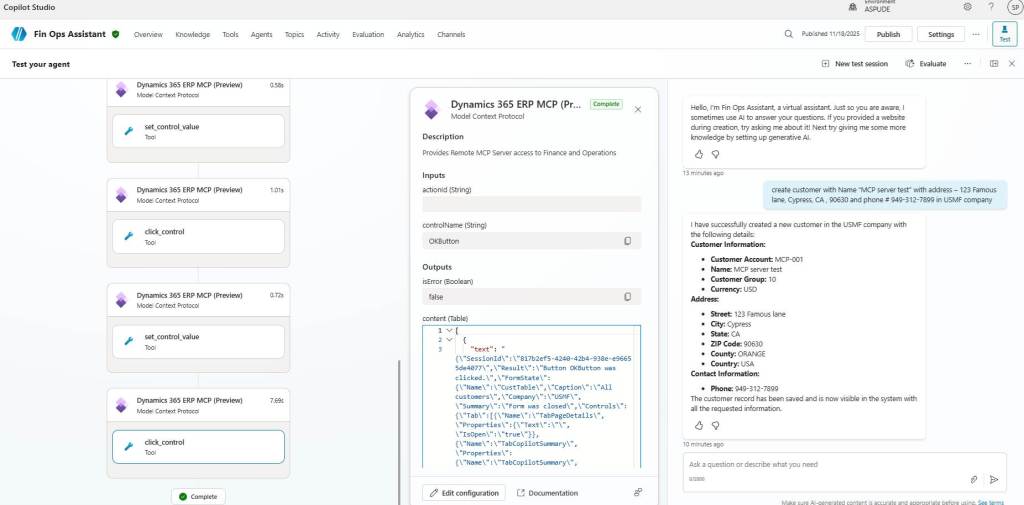
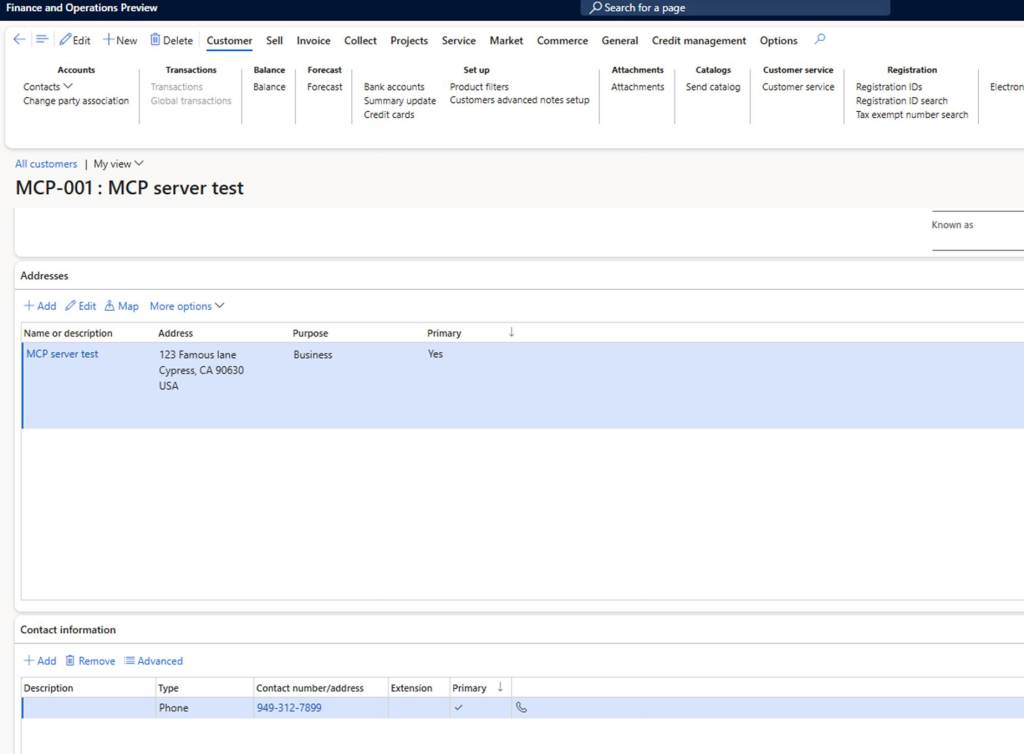
You can see in the below screenshot how agent opens create custom dialog and fill each value and finally saves the record.
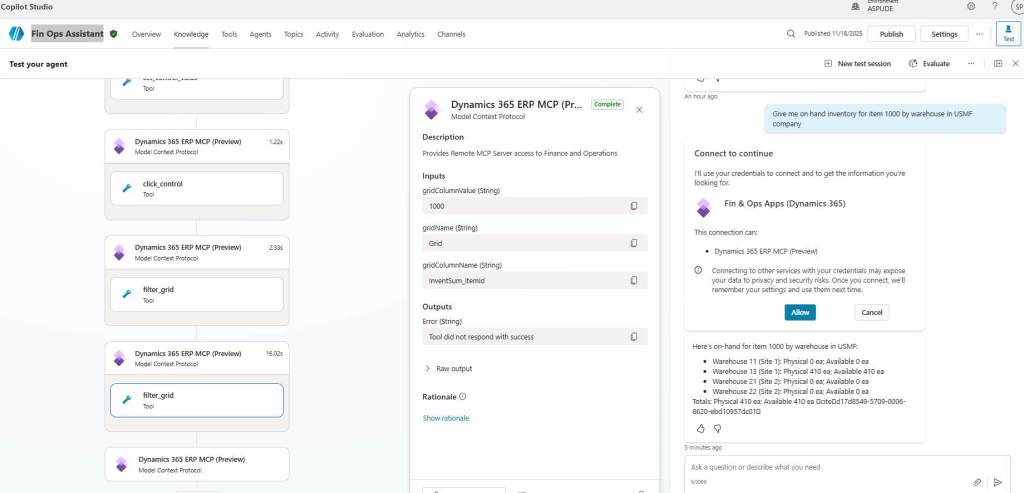
I provided another prompt to Agent to give me available on hand for item 1000 in USMF company and I got the correct results.
Conclusion
Model context Protocol is very power full tool which is going to provide lot of value and much better than static one which is released earlier. Also, any customer AI tools that implement the ICustomAPI interface and have appropriate security defined for the associated menu action item are available to find in the MCP server with the find_actions tool and invoke with the invoke_action tool.
Give it a try to provide your feedback in comments and read more about it on following links –
Enable MCP– https://learn.microsoft.com/en-us/dynamics365/fin-ops-core/dev-itpro/copilot/copilot-mcp
Building agent using MCP – https://learn.microsoft.com/en-us/dynamics365/fin-ops-core/dev-itpro/copilot/build-agent-mcp
 e-Learn Dynamics 365 and Power platform