Introduction
We always had a dream to develop x++ code from our local visual studio like we do in other programming languages. Microsoft has given glimpse of it for Finance and operations development and finally at the end of 2023 finally we got the preview of doing development locally.
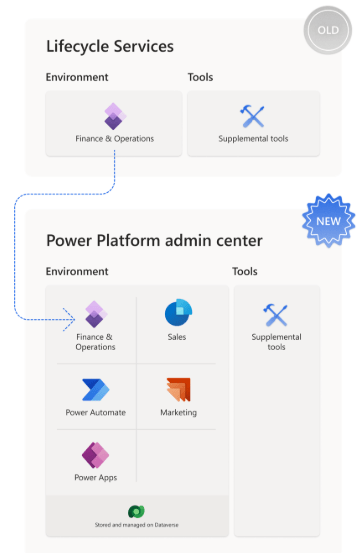
Unified development environments give us the ability to develop locally. As part of unifying the admin experiences for finance and operations apps within Power Platform, the environment for finance and operations apps is now an application within Power Platform. You can administer these environments from Power platform admin center.
There are two types of environments you can deploy from power platform admin center
- UDE – Unified development environment
This type of environment can be utilized for X++ Development purpose and debugging
- USE – Unified Sandbox environment.
This type of environment is tier 2+ environment and used of validation purposes. It can be utilized for System integration testing, User acceptance testing perf testing etc.
Deploy UDE using PowerShell
To deploy this environment, you need admin access to the power platform admin center, minimum of 1 GB Dataverse capacity and any of the following licenses.
- Finance
- Supply chain
- Commerce
- Project operations
You can find more about managing capacity on this link – https://learn.microsoft.com/en-us/power-platform/admin/finance-operations-storage-capacity
To deploy environment using power shell you can utilize below script .
Write-Host “Creating a session against the Power Platform API”
Add-PowerAppsAccount -Endpoint prod
#To construct the json object to pass in
$jsonObject= @”
{
“PostProvisioningPackages”:
[
{
“applicationUniqueName”: “msdyn_FinanceAndOperationsProvisioningAppAnchor”,
“parameters”: “DevToolsEnabled=true|DemoDataEnabled=true”
}
]
}
“@ | ConvertFrom-Json
# To kick off new environment Provisionment
# IMPORTANT – This has to be a single line, after the copy & paste the command
New-AdminPowerAppEnvironment -DisplayName “UDE” -EnvironmentSku Sandbox -Templates “D365_FinOps_Finance” -TemplateMetadata $jsonObject -LocationName “unitedstatesfirstrelease” -ProvisionDatabase
This script has multiple parameters. If you want a preview environment you can specify location name parameter as unitedstatesfirstrelease. Preview environments are available only in United states region. You can choose a template based on licenses you have. Following are some templates available which you can choose.
| License | Template name | Template ID | Comments |
| Dynamics 365 Finance | Finance (preview) | D365_FinOps_Finance | |
| Dynamics 365 Supply Chain Management (preview) | Supply Chain Management (preview) | D365_FinOps_SCM | |
| Dynamics 365 Project Operations | Project Operations Integrated (preview) | D365_FinOps_ProjOps | |
| Dynamics 365 Operations Application Partner Sandbox | Project Operations Integrated (preview) | D365_FinOps_ProjOps | |
| Dynamics 365 Commerce | Commerce (preview) | D365_FinOps_Commerce | This template is available only for trials. |
Deploy UDE from PPAC
There is another way to deploy unified development environment which is directly from power platform admin center.
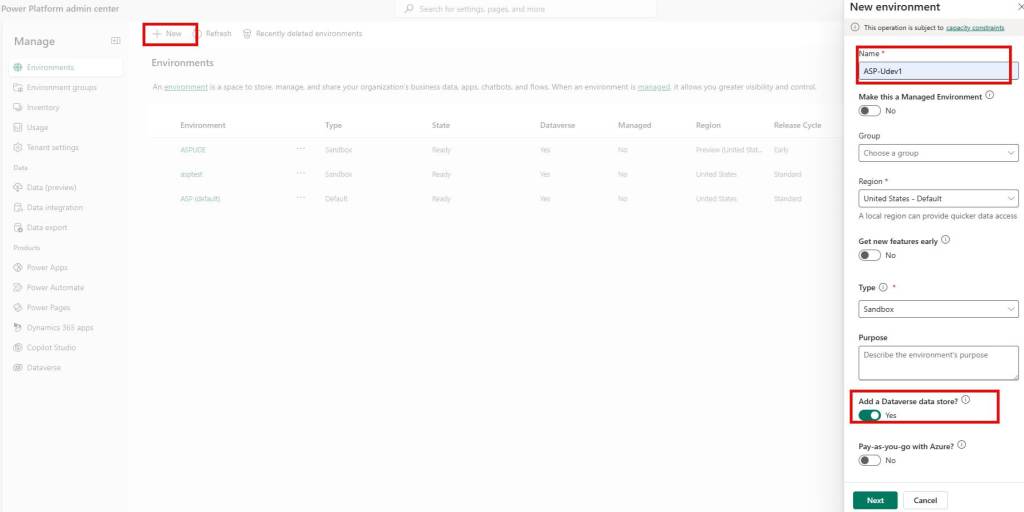
First step is to log in to power platform admin center, go to manage option and click on environments and click on new and fill in the values shown in below image.
Click next, and make sure you select the “Enable Dynamics 365 Apps” check box as shown in the below image.
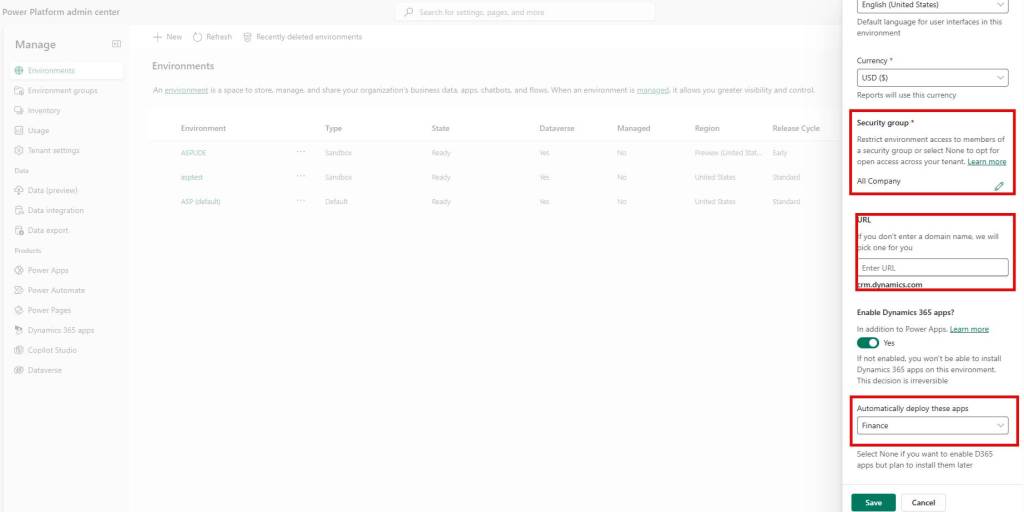
If you want specific URL for your environment, you can specify domain name in the URL box.
Make sure you select security group, and Dynamics apps which you want to install in the respective boxes.
If you don’t want to install any app in this step you can select “None” and later install it.
You can click save button and wait until your environment is deployed.
Installing an App If you have selected None in above mentioned steps:
If you have selected None option in App selection section, you can follow below steps to install apps.
You can visit your environment page and click Dynamics 365 apps. Once you get there, click on Install app button at the top and install following apps
- Dynamics 365 Finance and Operations Platform Tools
- Dynamics 365 Finance and Operations Provisioning
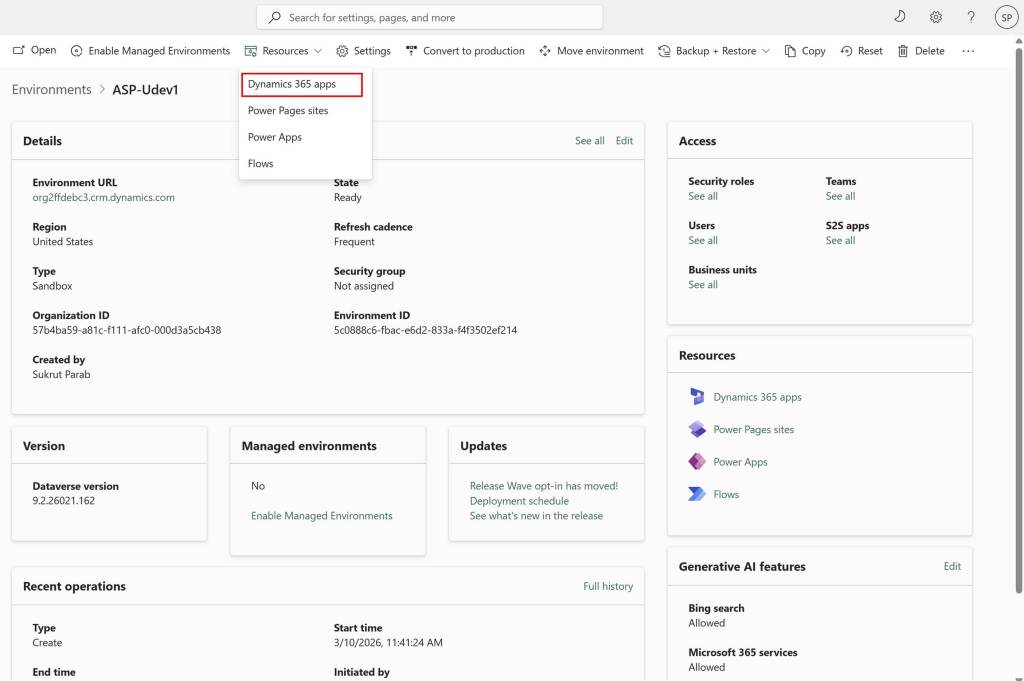
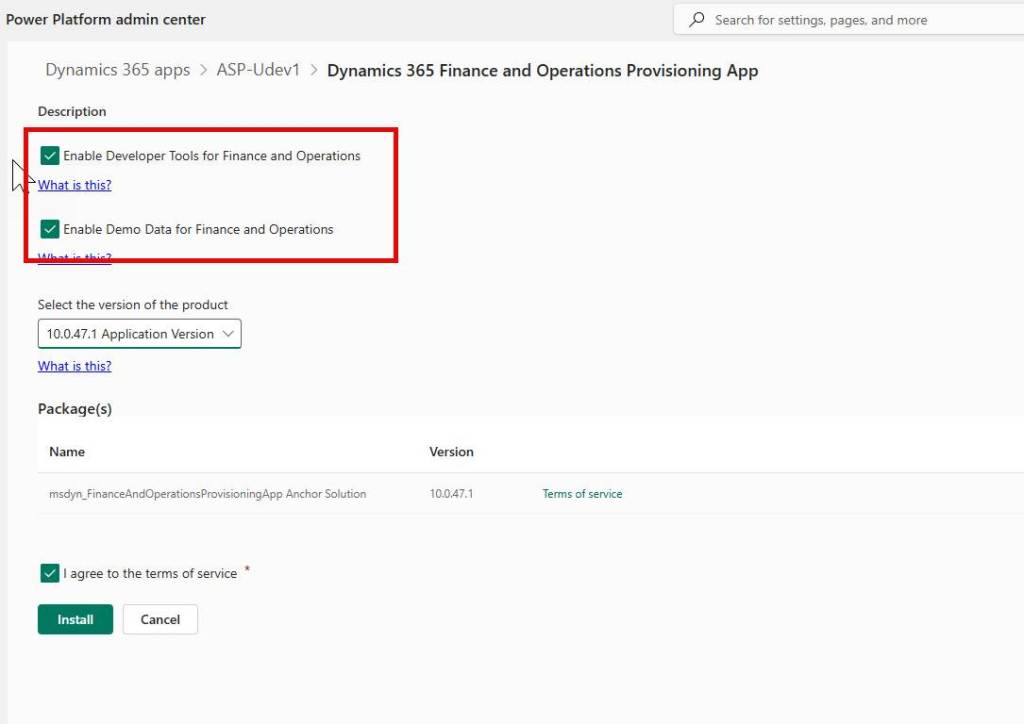
Dynamics 365 Finance and Operations Provisioning app install Finance and Operations in your environment. Make sure you are selecting the highlighted things below when you install this app. The most important setting is to Enable Developer Tools for Finance and Operations and Enable Demo Data for Finance and Operations checkboxes as these options enable developer experience and gives you demo data in your environment.
Installing these apps should take approximately 10-15 minutes. So, you will have to wait until installation finishes.
When you install provisioning app make sure you check below boxes so that it installs FO in the Dataverse environment. You can also select the Application version from the drop-down menu available below these boxes and then click install. You will have to wait approximately 2 hours till your environment gets ready.
Once your environment is ready you can use visual studio from Local machine to connect to it.
That’s all for now.
Conclusion: In this blog post we saw different ways of deploying unified development environments from Power platform Admin center.
In the next blog post we will see how to work with unified environments.
Microsoft Learn documentation – https://learn.microsoft.com/en-us/power-platform/developer/unified-experience/finance-operations-dev-overview
 e-Learn Dynamics 365 and Power platform