
When you work with project management and accounting or project operations often times you have to set up resources on your Projects.
Let’s look at different ways of managing resources depending on the size of your consulting organization and projects. Resource management is tightly linked to scope, budget and timeline planning.
Prerequisites: –
If you want to set up Employee as a resource first thing you need to perform is set up at Employee level.
To do that visit Humana resources > Workers > Employees Form
Once you open that form click on the action pane and then Project as shown below

Make sure you are setting the fields below
- Period code
- Max hours calendar
- Calendar
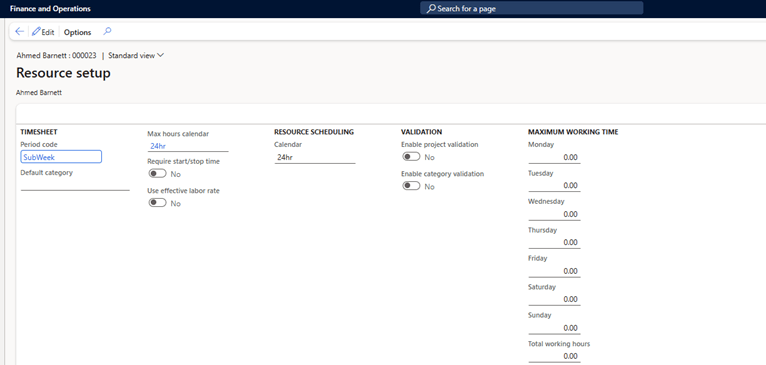
Once you set up these fields you can verify if Employee is visible on the Resource list page in PMA > Project Resources > Resources list.
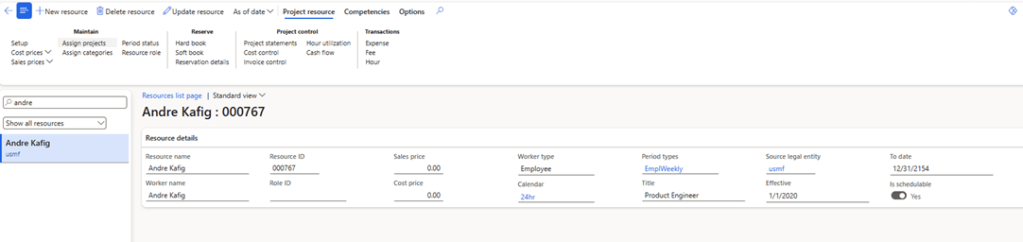
Employee Set up on Projects:
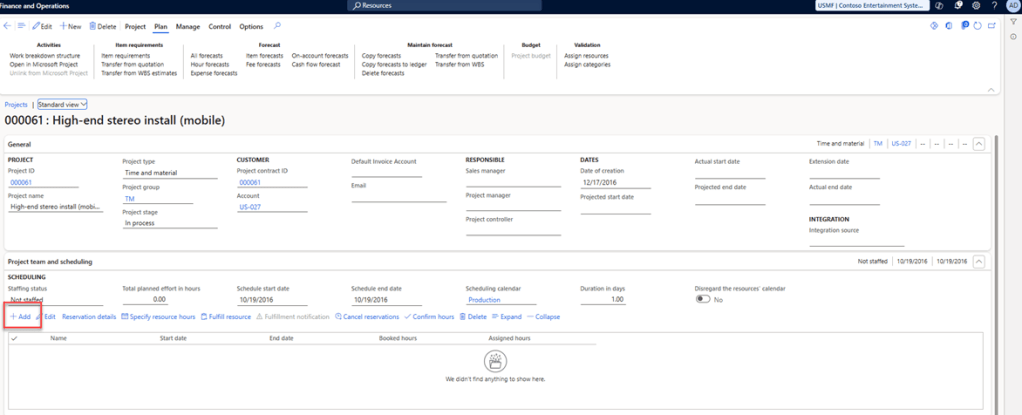
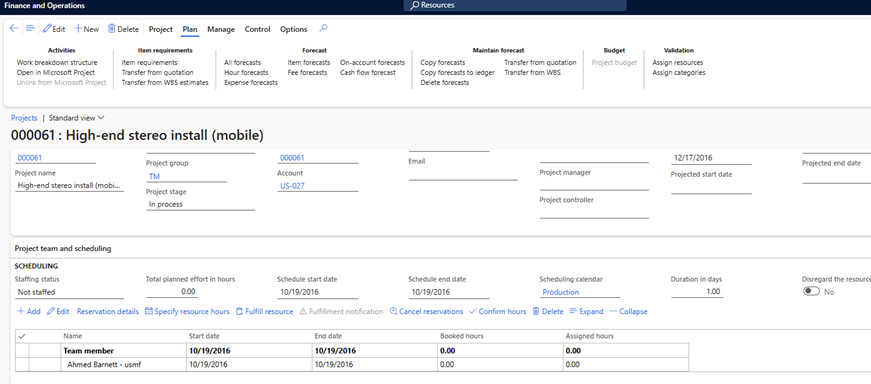
Once you set up prerequisites mentioned above, now you are ready to set up this resource on projects. To do that, you need to go to All projects form, open a Project and go to scheduling fast tab and Click add button.
If the employee which you set up belongs to the legal entity you are working in then you should be able to see that below dropdown and able to create resource on your project.
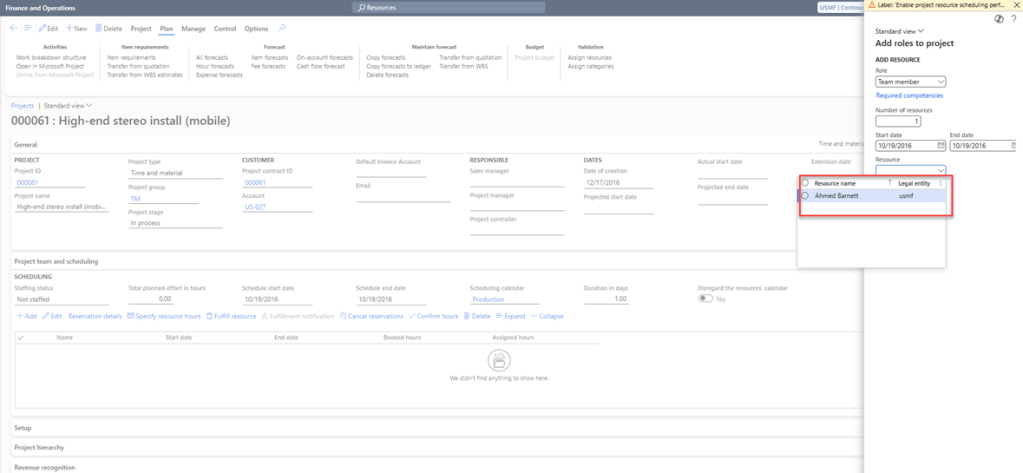
You can then see the created resources below in your scheduling tab. To add more resources, you must follow the steps I mentioned.
Adding resources through Automation:
There are scenarios where you might want to add this resource on multiple projects during cutover. One option for that is using data management or writing a runnable class.
Scenario 1– Using custom Script to upload CSV file
In the scenario which I am going to explain, I am going to use runnable class and CSV file for it. Below is my csv file where I have employee ID, name and project # for which I want to import resources.
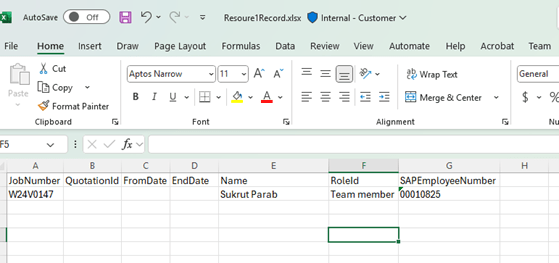
In my previous GitHub projects, I shared utility for running runnable classes. I have also uploaded a project with classes for importing these resources using this utility and thorough customer service using HTTP action in power automate here. You can download it and deploy it in your environment.
Once you run the utility, you can select your CSV file and Import.

Scenario 2- Using F&O custom service using Microsoft power Automate.
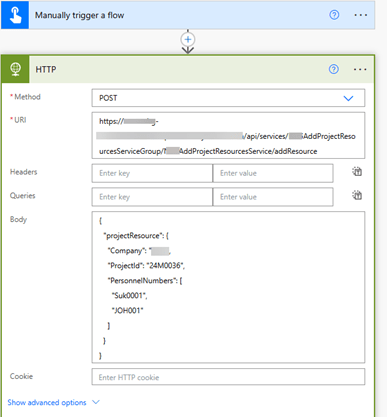
In this scenario I am going to show you how you can use custom service and power automate to create resources on the project. The custom service I am talking about will be shared on my GitHub page.
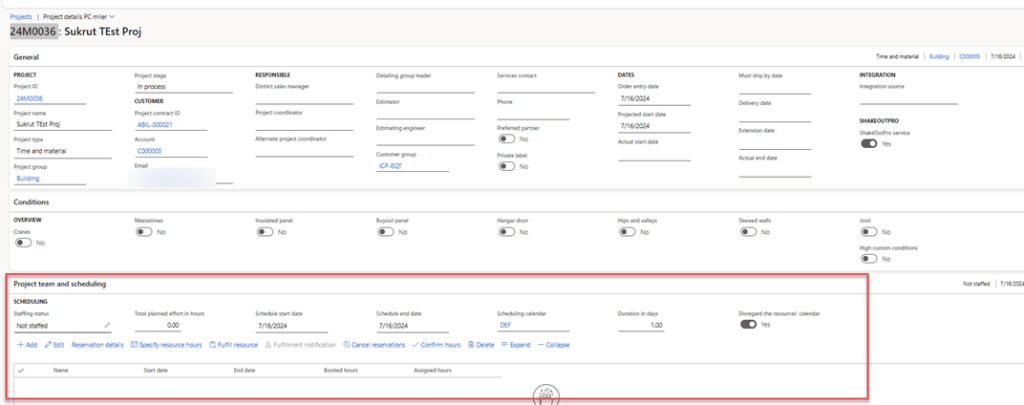
I am going to use HTTP action within Power Automate to call HTTP service. Project where I am going to create resources is as shown below which has no resources right now.
Below is the flow which I configured, Where I am calling F&O service using HTTP action using OAuth 2.0 authentication.
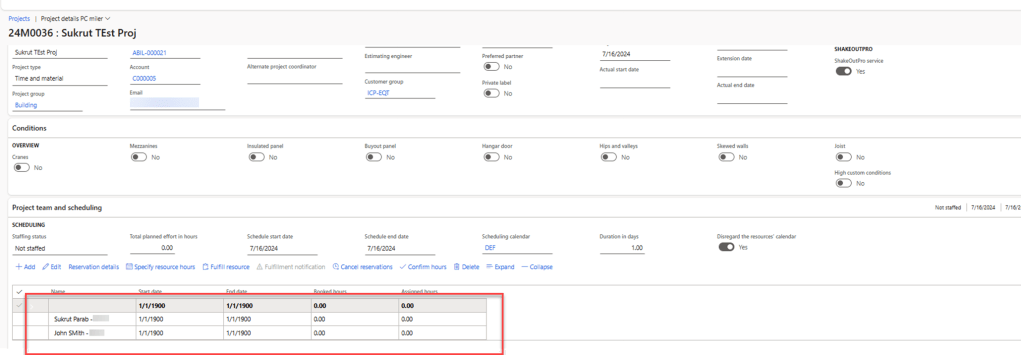
I triggered the flow manually and below is the result, resources are created on projects.
Hope you liked this post. If you have any questions, feel free to comment. Thanks for reading.
 e-Learn Dynamics 365 and Power platform