
While working with project management and accounting or project operations you might have come across a term call WBS or Work Breakdown structure. Today we are going to look at what work breakdown structure is in Dynamics 365 Finance and supply chain and some technical things about WBS.
Work breakdown structure is nothing but task level representation of activities which are required to be performed in a Project. These tasks can be performed simultaneously. The Work Breakdown Structure (WBS) plays a crucial role in the project management process, ensuring that project tasks, costs, and resources are properly planned, tracked, and controlled.
A WBS has three major purposes:
- Describe the breakdown or composition of work in tasks.
- Schedule the project work.
- Estimate the cost of each task.
A common example of using work breakdown structure is for companies who work in constructing buildings which demand complicated WBS. Another example is industries which perform services or installation of their manufactured items.
Each construction project or building project can consist of multiple phases and each phase within project can have multiple tasks like detailing, designing etc. Within these multiple tasks there can be tasks which are required to be completed to complete parental tasks and so on. To complete these task projects, we need to have resources assigned on them. This resource can be further assigned on the task as WBS tasks level.
So overall to complete a WBS you need the following components.
- Scheduling calendar
- Importing tasks at WBS level
- Resources at project level
- Resource assignment at WBS level.
- Publishing WBS
Now when you have big implementations where you need to import bulk data for all the above, very limited standard functionality is available. Let’s look at data migration section how you can import these.
Data migration in WBS:
Importing work breakdown structure is another important task when you are dealing with data migration in PMA module. You can use Project work breakdown structure – Draft entity to perform this activity. Remember, if you don’t set “Scheduling calendar” field on project you won’t be able to import work breakdown structure on project.

If you look at the template below for WBS- draft entity, it does not have any place to import resources, resource has to be imported using custom script or assigned using OOB service operation createUpdateProjectWbs from ProjectwbsService or You can use a template and custom Script which I have provided on my GitHub.

For importing resources at project level, there is no standard entity is present. I have provided a custom script at my GitHub page with template to import resources at project level which impots resource like shown below.
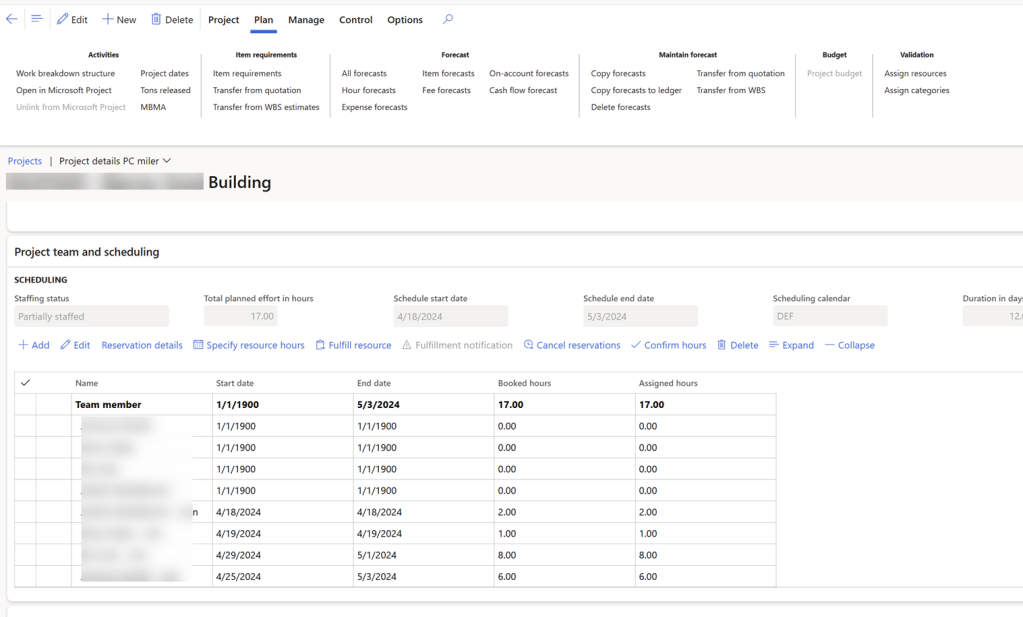
Another Important to remember here if you are importing WBS on projects is, it is not published automatically. You would have considered writing a custom script to publish WBS for all projects.
I have provided scripts for importing resources on WBS and Publishing WBS on my GitHub page.
Importing template in WBS:
If you have complex work break down structure, then it’s better to mapped those out in excel or create as templates. You can import these templates in WBS form. You can either do it from UI or code.
To set up the templates you can go to PMA > Set up > Project > Work Breakdown structures templates.
Click new and create new template. And set up a template like below which can be later imported on project WBS through import button.

Let’s see how you can import a WBS on a project using template.
Go to project management and accounting module and All projects form. I created a new project as shown below. Once you create a project click on Work breakdown structure button.

Then click on Import button and select your template which you want to import. Your template is going to have a predefined set of tasks within it.

Once your import is finished you can see all your tasks are imported as per the templates are defined
Now if you have a requirement like importing this template during any process using code you can do it using ProjPlanVersionsManager class using below code.
public static void main(Args _args)
{

    ProjPlanVersion                     currentProjPlanVersion,
                                        importProjPlanVersion,
                                        updatedProjPlanVersion;
    NBGProjectCreation                  projectCreation;
    ProjTable                           projTable,
                                        projParent;


    projTable = projTable::find("Your Proj Id");
    select firstonly HierarchyId from currentProjPlanVersion
        where currentProjPlanVersion.TaskName == projTable.ProjId;

    select firstonly HierarchyId from importProjPlanVersion
        where importProjPlanVersion.TaskName == projTable.NBGTemplate
            && importProjPlanVersion.HierarchyId != strMin();


    ProjPlanVersionsManager::importTemplateHierarchy(importProjPlanVersion.HierarchyId,
                                                        currentProjPlanVersion.HierarchyId,
                                                        1);

}
 e-Learn Dynamics 365 and Power platform